Short answerWrite your own questions and policies once. Your staff read them in Teams, beside every role.
Steps
- In Hire, open Teams → Settings.
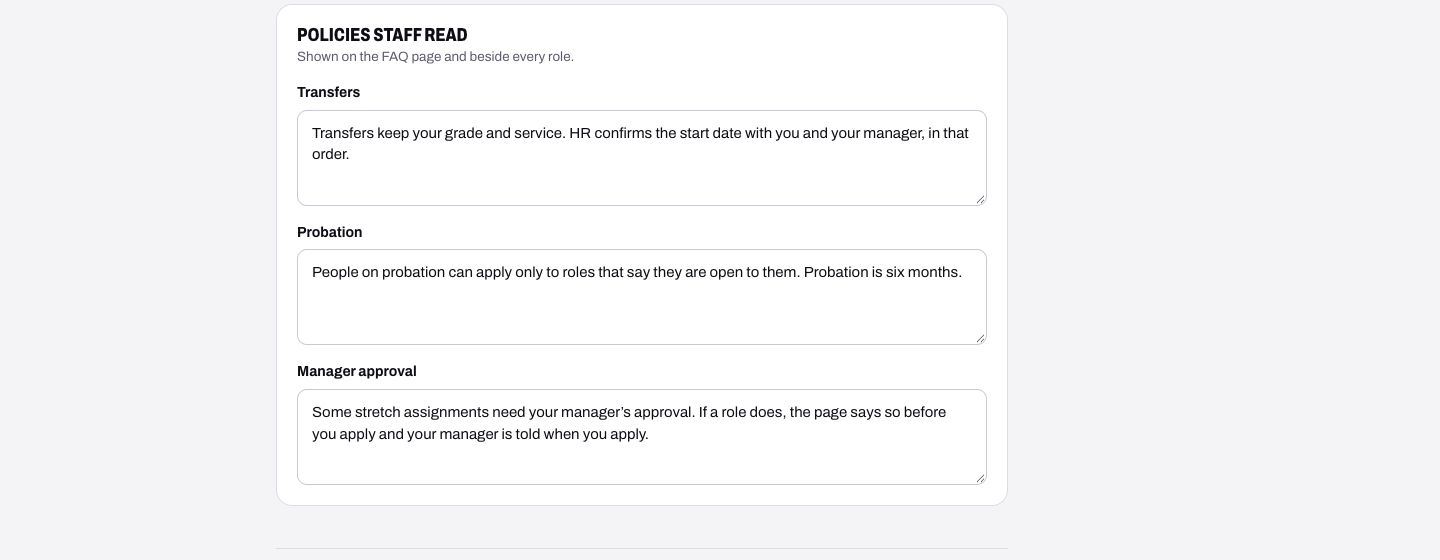
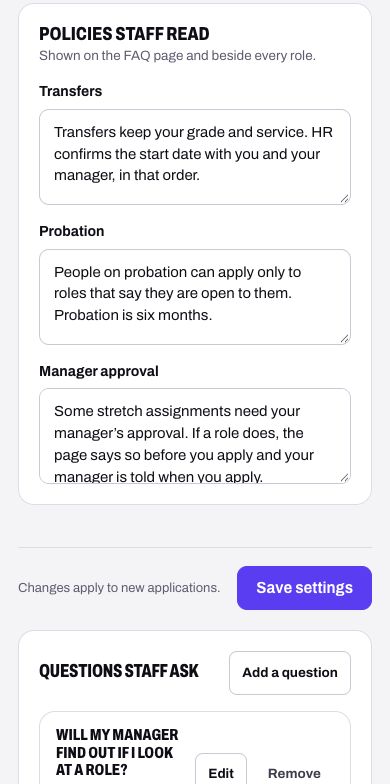
- Under Policies staff read, fill in Transfers, Probation and Manager approval.
- Under Questions staff ask, press Add a question, write the question and the answer.
- Press Save settings.
Good to know
- Staff see them on the Policies & FAQs page and beside every role. They're behind sign-in and only your staff can open them.
- Changes apply to new applications.
- Settings also hold who is told by default, how long managers have to answer, and referrals.
Did this help?
Tell us, so we can fix what doesn’t.